Booking.com integration: reservations flow into your tape chart, availability flows back
Short answer: uMehmon connects to Booking.com in two ways. The one that works today is two-way iCal sync: Booking.com reservations land on your tape chart automatically as blocked dates, and your own occupancy is sent back to Booking.com. The second is the Connectivity API (B.XML), which carries guest names, prices and cancellations in full but only works with a connectivity account certified by Booking.com. Below you will find a step-by-step iCal setup through the extranet and an honest look at its limitations.
Why connect Booking.com to your PMS?
For many hotels, guest houses and apart-hotels in Uzbekistan and across Central Asia, Booking.com is one of the main sources of international guests. The catch is that the Booking.com calendar lives separately from your reservation book or software. Every phone booking or walk-in guest means closing dates in the extranet by hand, and every Booking.com reservation means copying it into your own records.
That two-way manual work creates three risks:
- Double bookings: one room is sold on two channels and a guest has to be relocated.
- Missed reservations: a Booking.com booking never makes it into the log, and the room is not ready when the guest arrives.
- Lost time: the front desk spends its day on screens instead of guests.
A Booking.com integration automates the whole loop. In uMehmon it runs inside the channel manager and shares one database with the tape chart, reservations and E-mehmon guest registration in the hotel PMS.
Two ways to connect: iCal and the Connectivity API
| Criterion | iCal sync | Connectivity API (B.XML) |
|---|---|---|
| Status in uMehmon | Live now | Available with a certified connectivity account |
| What you need | Extranet access | Booking.com machine account (client_id and secret) |
| Do bookings arrive | Yes, as blocked dates | Yes, with full details |
| Guest name and contacts | No | Yes |
| Price and total | No | Yes |
| Cancellations | Detected when dates vanish from the feed | Delivered directly |
| Availability sent to Booking.com | As closed dates | With free room counts |
| Polling interval | At least 300 seconds | At least 20 seconds (Booking.com requirement) |
| Room type mapping | Through iCal links | Through Booking.com room IDs |
| Best fit | Single-unit room types, small properties | Hotels with larger inventory |
Keep in mind: API mode only works with credentials from an account certified by Booking.com as a Connectivity Partner, or through a channel manager that holds such an account. If you do not have one, iCal is the only direct connection you can switch on today.
Before you start: checklist
Check the following before setting up iCal:
- You can log in to the Booking.com extranet with administrator rights.
- Your property typically has one unit per room type and no more than 20 room types, which is when Booking.com offers calendar sync.
- No other connectivity provider (channel manager) is linked to the account; otherwise Sync calendars may not be available.
- Your uMehmon room types map one-to-one to your Booking.com room types.
- Hostel mode is off, because in hostel mode E-mehmon is the only integration that runs.
- Your plan includes the Channel Manager (Pro, Business or the free trial).
Connecting with iCal: step-by-step guide
Step 1. Prepare room types in uMehmon
Sign up and create your room types in settings. Using the same names as on Booking.com makes life easier: "Standard Double", "Family Room" and so on. Assign rooms to each type and the tape chart builds itself.
Step 2. Open Sync calendars in the Booking.com extranet
Log in to the extranet, choose Rates & Availability in the top menu and open Sync calendars. This page lists your property's room types with calendar sync settings for each. Booking.com updates the extranet from time to time, so the label may vary slightly; look for the calendar sync section.
Step 3. Paste the Booking.com export link into uMehmon
For each room type Booking.com provides an export link: an .ics address containing the dates booked on Booking.com for that room type. Copy it.
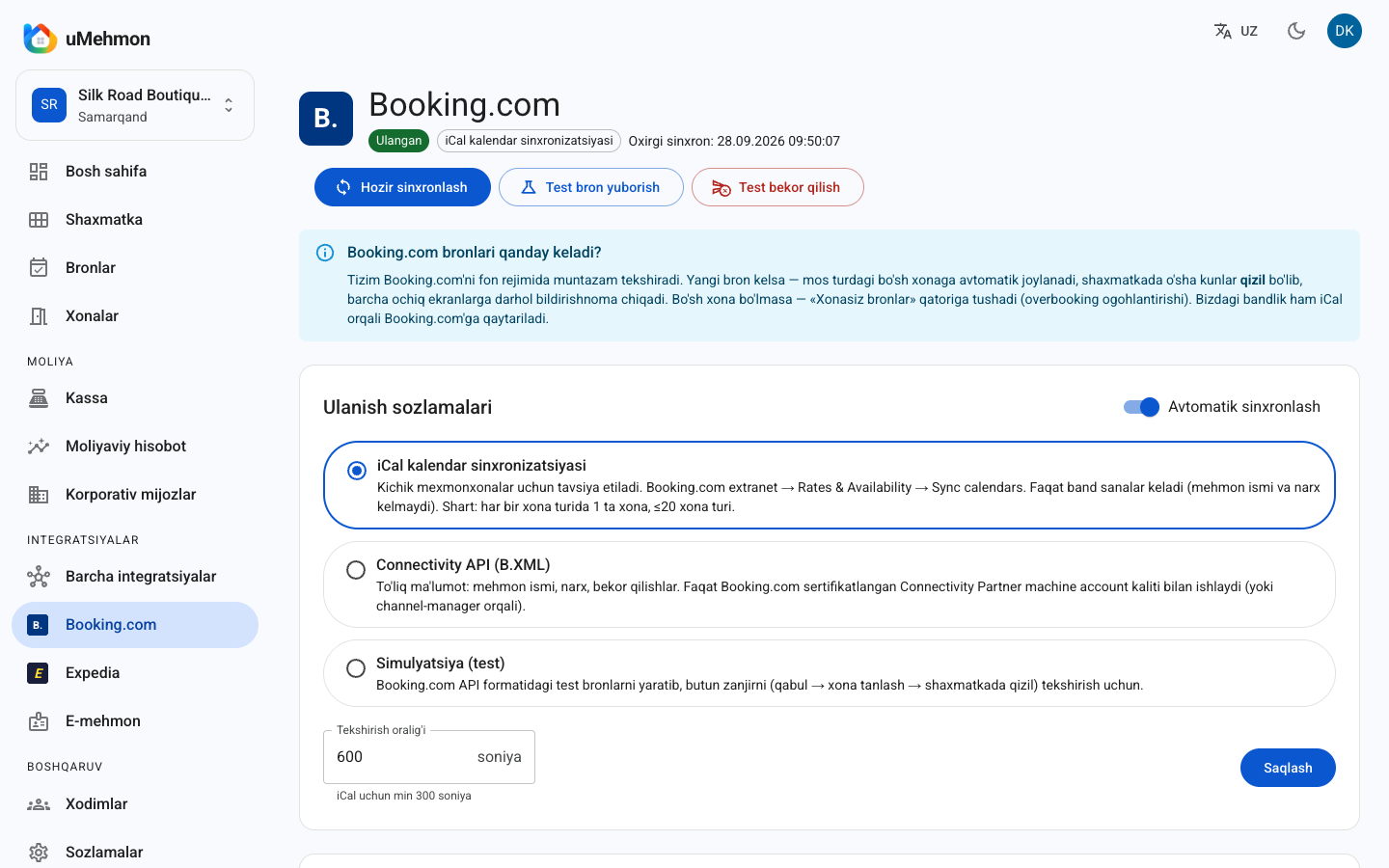
In uMehmon, open Integrations → Booking.com, choose iCal as the connection mode and, in the room mapping section, paste the link into the Booking.com iCal import field on the matching room type row. Save the mapping. If the link is not a valid iCal feed, uMehmon tells you right away.
Step 4. Import the uMehmon link into Booking.com
The same row shows uMehmon's own export link for Booking.com. Click Copy. Back in the extranet, on the Sync calendars page, choose to import an external calendar for that room type, paste the link and give the calendar a clear name such as "uMehmon PMS". Save.
The two-way connection is now in place: Booking.com bookings flow into uMehmon, and uMehmon occupancy flows to Booking.com.
Step 5. Repeat for every room type
Steps 3 and 4 are done separately for each room type. A skipped room type simply does not sync, and this is the most common setup mistake.
Step 6. Test with a simulation
Instead of waiting for a real booking, click Send test booking in uMehmon. The system creates a booking in Booking.com format and runs the full chain: received → free room selected → red on the tape chart. Open the tape chart to check. Then use Test cancellation to confirm cancellations are handled too.
Step 7. Turn on automatic sync
Enable automatic sync and set the polling interval (at least 300 seconds for iCal). You can hit Sync now at any time. The sync log shows every attempt with its time, result and the number of new, updated and cancelled bookings.
A beginner-friendly version of this walkthrough is in how to connect Booking.com.
What data comes from Booking.com?
| Data | iCal mode | API mode |
|---|---|---|
| Arrival and departure dates | Yes | Yes |
| Room type | Yes (via the link) | Yes (via room ID) |
| Guest name | No (shown as "Booking.com guest") | Yes |
| Phone, email | No | Yes |
| Price and total | No | Yes |
| Reservation number | No | Yes |
| Cancellation | When dates vanish from the feed | Directly |
| Special requests | No | Yes |
In iCal mode uMehmon adds a note that the booking was received via iCal, so staff know to check the extranet for details. Passport data is still captured at check-in and the guest is registered in E-mehmon as usual.
iCal limitations: the honest list
iCal is simple and free, but you should know its boundaries before relying on it:
- Availability only. Rates, minimum stay, discounts and other restrictions are not sent over iCal; you keep managing them in the extranet.
- Delay. uMehmon polls Booking.com at your chosen interval, but Booking.com reads our link on its own schedule, roughly every few hours. During that window a room you just sold may still look open on Booking.com.
- Single-unit room types. Booking.com generally offers iCal to properties with one unit per room type. For hotels with many identical rooms this is a real constraint.
- Not compatible with a connectivity provider. If a channel manager is connected to your account over XML, calendar sync is usually unavailable.
- No guest data. You will still open the extranet for booking details.
So iCal is ideal for small properties and a quick start, while a growing hotel should plan a move to the API.
Connectivity API (B.XML): what does it take?
In API mode uMehmon exchanges data with Booking.com directly, so guest details, prices and cancellations arrive in full. You need:
- a Connectivity Partner machine account (client_id and secret) certified by Booking.com;
- each uMehmon room type mapped to its Booking.com room ID;
- a polling interval of at least 20 seconds, as Booking.com requires;
- no extra setup for security: credentials are stored encrypted (AES-256) and only administrators can change them.
API mode is already in the uMehmon interface and activates once certified credentials are entered. For properties without such an account, iCal is the practical path today.
Q&A
Question: My Booking.com room type name differs from the one in uMehmon. Is that a problem? Answer: No. Mapping works by link, not by name: whichever room type row holds the link is where the bookings land.
Question: Who picks the room when a booking arrives? Answer: The system does. The booking is assigned to a free room of the mapped type automatically, and you can drag it to another room on the tape chart later if needed.
Question: What if there is no free room for a Booking.com reservation? Answer: The booking is not lost. It goes into the unassigned bookings row with an overbooking warning, so a manager can resolve it right away by moving guests or contacting the guest.
Question: I run two properties in one account. Can each connect to Booking.com separately? Answer: Yes. One uMehmon account can hold several properties, each with its own isolated data and integration settings.
Numbers: how to evaluate the Booking.com channel
Instead of invented statistics, here are formulas you can run on your own data:
- Booking.com share = Booking.com room revenue / total room revenue × 100%
- Commission cost = Booking.com booking value × commission rate in your contract
- Net channel revenue = Booking.com booking value − commission
- Sync blind window = how often Booking.com reads our feed (up to a few hours with iCal)
Example: 30 Booking.com reservations in a month at an average of 1,200,000 UZS → 36,000,000 UZS. With a 15% commission (an illustrative rate only), the cost is 5,400,000 UZS and net channel revenue is 30,600,000 UZS.
Example: a 10-room guest house with one room per room type takes a phone booking. The date closes in the uMehmon feed immediately and on Booking.com at its next read. The chance of an extra booking in that window is low but not zero, so in peak season it is a good habit to close your last available rooms on Booking.com manually as well.
Channel share, ADR, RevPAR and other KPIs are calculated automatically in uMehmon hotel analytics.
Comparing three approaches
| Criterion | Paper log / Excel + extranet | Generic calendar app | uMehmon + Booking.com iCal |
|---|---|---|---|
| Bookings arrive automatically | No | Partly (calendar only) | Yes, onto the tape chart |
| Automatic room assignment | No | No | Yes |
| Availability sent to Booking.com | By hand | Sometimes | Yes |
| E-mehmon, cash desk, invoices | Separate | No | Same system |
| Overbooking warning | No | No | Yes |
| Test mode | No | No | Yes |
Pros and cons
Pros
- You can go live today, with no certification or extra contract.
- Bookings land on the tape chart automatically, get a free room and turn red.
- Occupancy from other sources (phone, walk-ins, other channels) is sent to Booking.com.
- Cancellations are detected automatically.
- Simulation mode, a sync log and an activity log are built in.
- You can switch to the API later in the same interface.
Cons
- iCal does not deliver guest names, prices or reservation numbers.
- Syncing is not real-time; Booking.com reads our feed every few hours.
- Booking.com iCal is usually limited to single-unit room types and up to 20 room types.
- No rate or restriction push to Booking.com over iCal.
- The API requires a certified connectivity account.
- The Booking.com integration is disabled in hostel mode.
Troubleshooting
| Problem | Likely cause | Fix |
|---|---|---|
| No Sync calendars section | Property not eligible or a connectivity provider is linked | Contact Booking.com partner support |
| "Link is not in iCal format" error | Wrong address copied | Copy the .ics export link from the extranet again |
| Bookings are not arriving | Automatic sync is off or the room type is not mapped | Check settings and the room mapping section |
| Dates not closing on Booking.com | uMehmon link not imported or not read yet | Confirm the import and wait for Booking.com to refresh |
| Booking in the unassigned row | No free room of that type | Move a booking or contact the guest |
From Booking.com reservation to check-out: the daily workflow
The integration does not stop at importing a booking. The whole guest journey stays in one system:
- Booking arrives. A red block appears on the tape chart and every screen gets a notification. In iCal mode a manager can add the guest name and amount from the extranet.
- Arrival day. The guest shows up in the daily arrivals list. Housekeeping status matters: a dirty room cannot be checked into today until it is cleaned.
- Check-in. The front desk enters passport data, plus visa and border crossing details for foreign guests. The guest is registered in E-mehmon automatically, and failed requests go into a retry queue.
- During the stay. Services and payments are posted to the folio. Extensions and late check-outs show on the tape chart at once and reach Booking.com through the export feed.
- Check-out. The system asks whether to deregister the guest in E-mehmon too, and the room switches to dirty automatically. After an early departure the remaining nights are released.
Payments are recorded at the cash desk by method (cash in UZS or foreign currency, Uzcard, Humo, Visa, Mastercard), and analytics count the booking toward your OTA share. Every action is kept in the activity log.
Conclusion
A Booking.com integration is the first and most important step for any hotel selling through OTAs. In uMehmon, two-way iCal sync works today: reservations land on the tape chart automatically, availability flows back to Booking.com and cancellations are detected. For guest details and rates there is the Connectivity API, available with a certified account. See everything else the platform does on the hotel management software page.
Start a 14-day free trial: sign up, add your Booking.com iCal links and see your first simulated booking within minutes.
How to connect Booking.com to uMehmon with iCal
- 1
Prepare room types in uMehmon
Sign up and create one uMehmon room type for each Booking.com room type, then assign the rooms to it.
- 2
Open Sync calendars in the extranet
Log in to the Booking.com extranet and go to Rates & Availability, then Sync calendars.
- 3
Paste the Booking.com export link into uMehmon
For each room type, copy the .ics export link from Booking.com and paste it into the import field of the matching room type under Integrations, Booking.com, room mapping.
- 4
Import the uMehmon link into Booking.com
Copy the uMehmon iCal link shown next to the room type and import it in the extranet as an external calendar for that room type, giving it a clear name.
- 5
Test with a simulation
Send a test booking in uMehmon, confirm it turns red on the tape chart in a room of the right type, then run a test cancellation.
- 6
Turn on automatic sync and watch the log
Select iCal mode, enable automatic sync, set the polling interval and review the sync log during the first days.
Frequently asked questions
In two ways: two-way iCal sync, which works today, and the Booking.com Connectivity API (B.XML). The API only works with a connectivity account (machine account) certified by Booking.com. For small properties we recommend iCal.
Open Rates & Availability in the extranet and go to Sync calendars. There you will find an export link for the Booking.com calendar of each room type, plus an option to import an external calendar.
No. The Booking.com iCal export only contains blocked dates, so guest name, phone, price and reservation number are not included. uMehmon creates the booking with a label such as Booking.com guest, and you check the details in the extranet. Full data arrives in API mode.
uMehmon polls the Booking.com calendar at the interval you set, with a minimum of 300 seconds for iCal. Booking.com reads our export link on its own schedule, roughly every few hours. That is why iCal is not real-time.
Booking.com does not offer calendar sync to every property. Typically you need one unit per room type, no more than 20 room types and no connectivity provider linked to the account. If the section is missing, contact Booking.com partner support.
Booking.com iCal sync is generally designed for single-unit room types, so multi-unit room types may run into restrictions. In that case the Connectivity API is the better fit; discuss your options with your Booking.com account manager.
The integration is part of the Channel Manager, included in the Pro plan (590,000 UZS per month) and the Business plan (990,000 UZS per month), and fully available during the 14-day free trial. The Start plan does not include the Channel Manager.
In iCal mode the cancelled booking disappears from the Booking.com calendar. On the next sync uMehmon detects this, marks the booking as cancelled and the room becomes free again on the tape chart.
Try uMehmon free for 14 days
Tape chart, reservations, cash desk, E-mehmon and Booking.com — in one platform. No credit card required.
Start free trial